
Bates Numbering
Bates stamp multiple files at once.
or drop a PDF here
No file selected
Files stay private. Automatically deleted after 2 hours.
Step by step
How To Apply Bates Numbering
Give every page a unique stamp — an exhibit mark plus a padded case number — with counters that pick up exactly where you need them.
-
1
Upload your PDF
Drop in a document and the first page appears with the stamp drawn across its top — “Exhibit 1 Case XYZ 000001”, live on the sheet. Files are deleted after 2 hours.

-
2
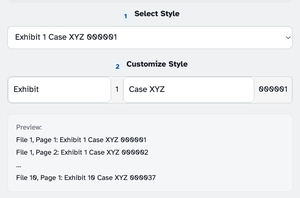
Pick a style, or build one
The style list covers the classics — Exhibit marks, case numbers, or bare padded numbers running 1 to 6 digits. Prefer your own? The Customize Style composer mixes fixed text with the live counters: file number, bates number, and the page for the “and page” styles. Preview lists the whole run — File 1, Page 1 right through File 10, Page 1 — and updates as you type.
-
3
Place it, continue the count, stamp
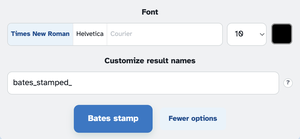
Location on Page puts the stamp in any of the six header or footer slots, and the Continue-from pair opens the sequence and the file counter wherever this run picks up — the ? bubbles explain both. Behind More options: font, size up to 60, colour, and custom result names.
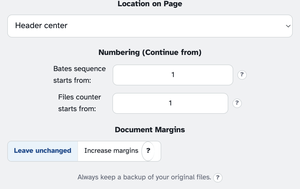
Press Bates stamp and the document comes back stamped, page after page counting on.
-
Ready-made styles
Exhibit marks, case numbers or bare padded numbers — 1 to 6 digits.
-
Build your own
The composer mixes fixed text with the file, bates and page counters.
-
Continue from anywhere
Bates sequence and file counter both take a starting number.
-
Room to spare
Increase margins scales the page content down so the stamp never sits on your text.
-
Font to colour
Times or Helvetica, sizes 6 to 60, in any colour — tucked into More options.
-
Private by default
No account, no watermark — and every file is automatically deleted after 2 hours.
Selected:
1Select Style
2Customize Style
Numbering (Continue from)
Document Margins
Always keep a backup of your original files. ?
Font