
Extract Images
Save each image from the PDF as a separate file
or drop a PDF here
No file selected
Files stay private. Automatically deleted after 2 hours.
Step by step
How To Extract Images From a PDF
Pull every picture out of a document as its own PNG — or turn whole pages into images — straight from the browser.
-
1
Upload your PDF
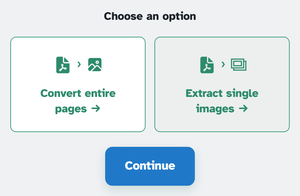
Drop in a document with pictures in it — scans, brochures, slide exports. Both options sit above the page: Convert entire pages and Extract single images — the one already chosen. Files are deleted after 2 hours.
-
2
Extract single images
Press Continue and every embedded picture comes out as a PNG named by page and order — p1_1, p1_2, p2_3 … — at its original pixel size, counting on across the whole document. One image comes back alone; several arrive together in one tidy ZIP, on the ready page.

-
3
Or convert entire pages
Pick Convert entire pages instead and Continue hands the file straight to the JPG tool, where each page becomes a picture of its own — handy for thumbnails, presentations and quick previews.
-
Every picture out
Each embedded image is saved as its own PNG, at its original pixel size.
-
One ZIP back
Several images arrive zipped together; a lone image comes back bare.
-
Named by page
p1_1, p1_2, p2_3 — the page it lived on and its order, counting on across the file.
-
Colour-faithful
Pictures keep their pixels and colours; JPEGs inside the PDF are re-saved as clean PNGs.
-
Pages as images too
Convert entire pages hands the document to the JPG tool for one picture per sheet.
-
Private by default
No account, no watermark — and every file is automatically deleted after 2 hours.
Selected:
Choose an option