
Header & Footer
Apply page numbers or text labels to PDF files.
or drop a PDF here
No file selected
Files stay private. Automatically deleted after 2 hours.
Step by step
How To Add a Header & Footer
Stamp page numbers or your own text into the header or footer of the document — the preview draws the mark live, exactly where it will print.
-
1
Upload your PDF
Drop in a document and the first page appears with the mark already drawn on the sheet — a fresh file starts as “Page 1” in the header. Files are deleted after 2 hours.

-
2
Customize the style
Write the text, then tap the caret for ready-made styles — Page 1, Page I, Page 2 of 45, the file name, or a plain text label. The line under the box previews the whole run.

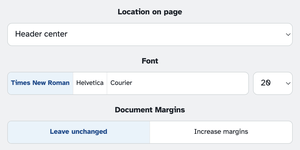
Pick one of six slots — header or footer, left, center or right — choose Times New Roman, Helvetica or Courier at any size, and decide whether the page keeps its margins or moves the content in to make room.
-
3
Target pages and run
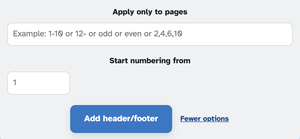
More options narrows it to the pages you name — 1-10, 12-, odd, even, or lists like 2,4,6,10 — and sets the first number. Press Add header/footer and the stamped document comes back ready to download.
-
Five ready styles
Page 1, Page I, Page 2 of 45, the file name, or a free text label — one tap each.
-
Six slots
Header or footer, in the left, center or right — wherever the page wants it.
-
Three fonts, any size
Times New Roman, Helvetica or Courier, from 6 up to 28.
-
Only the pages you pick
1-10, 12-, odd, even or lists like 2,4,6,10 — “Start numbering from” continues a run.
-
WYSIWYG preview
The mark is drawn on the real sheet as you type, so what you see is what prints.
-
Private by default
No account, no watermark — and every file is automatically deleted after 2 hours.
Selected:
Customize Style
Preview: Page 1
Font
Document Margins