
Protect
Protect file with password and permissions
or drop a PDF here
No file selected
Files stay private. Automatically deleted after 2 hours.
Step by step
How To Protect a PDF
Lock a document with a password and decide exactly what its readers may do — print, copy, edit — straight from the browser.
-
1
Upload your PDF
Drop the file you want to lock. Nothing is applied until you press the button — and the file is deleted after 2 hours.
-
2
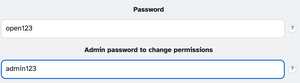
Set the passwords & permissions
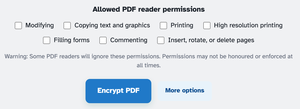
The Password is what anyone needs to open the file. The Admin password is the key for later — needed to change the permissions or remove the lock. The seven permissions start fully locked: nothing is allowed until you tick it.
-
3
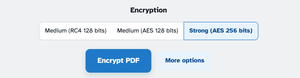
Pick the strength & encrypt
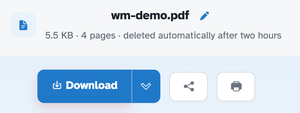
More options folds out the Encryption choice — Strong AES 256 is the default, with Medium RC4 and AES 128 for older readers. Press Encrypt PDF and the ready page hands back the locked file: in our test it opened only with the password, with every permission off.
-
A password to open
Anyone the file is shared with needs the password you set.
-
Admin key for changes
A second password controls the permissions — keep it safe to change or remove the lock later.
-
Nothing allowed by default
Printing, copying, editing, commenting — the seven permissions start switched off.
-
Modern encryption
Strong AES 256 by default; Medium RC4 and AES 128 for older readers.
-
Honest about limits
The screen says it plainly — some readers ignore permission flags; the password is the real lock.
-
Private by default
No account, no watermark — and every file is automatically deleted after 2 hours.
Selected:
Allowed PDF reader permissions
Warning: Some PDF readers will ignore these permissions. Permissions may not be honoured or enforced at all times.
Encryption