
Split by pages
Choose how to split, then pick the pages it should use. Clicking a page ends the document there: click page 4 and page 10 and you get 1-4, 5-10, 11 to the end.
or drop a PDF here
No file selected
Files stay private. Automatically deleted after 2 hours.
Step by step
How To Split a PDF Into Parts
Break one document into several — one file per page, chunks of N, or exactly where you say the parts should end.
-
1
Upload your PDF
Drop in a document and every page appears as a thumbnail, with a zoom slider to size them. Files are deleted after 2 hours.
-
2
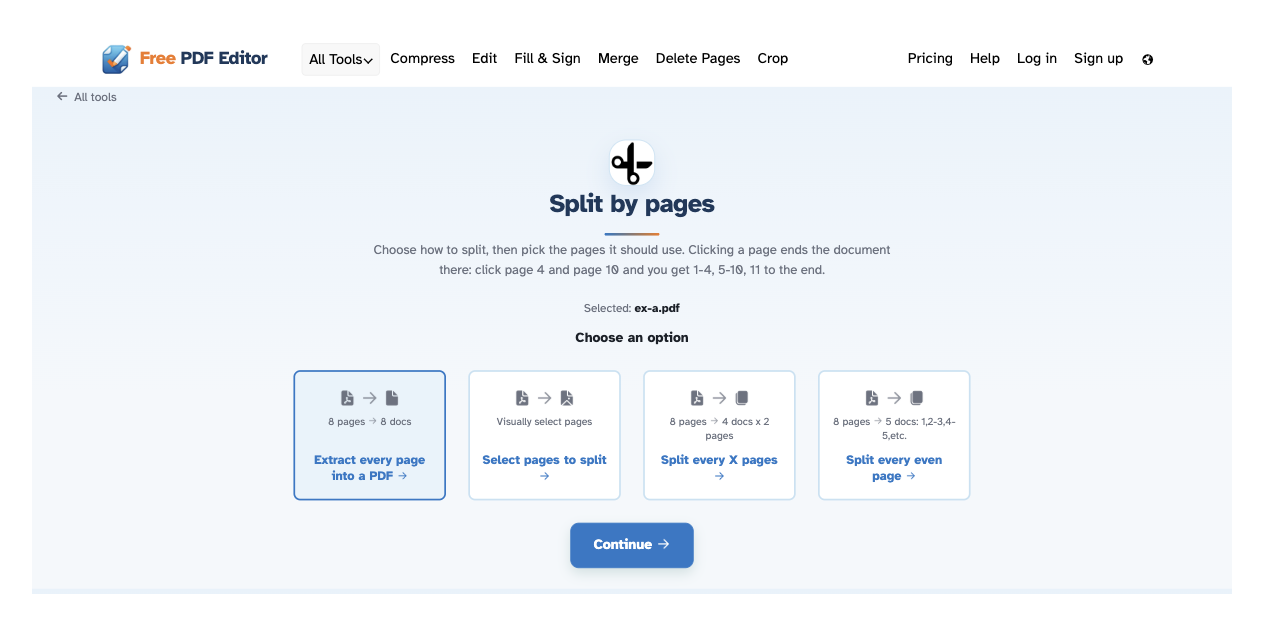
Choose how to split
Four cards, each showing what you will get in real counts: every page into its own PDF, pick the pages yourself, split every X pages, or every even page. The stats are computed for the document you loaded.
-
3
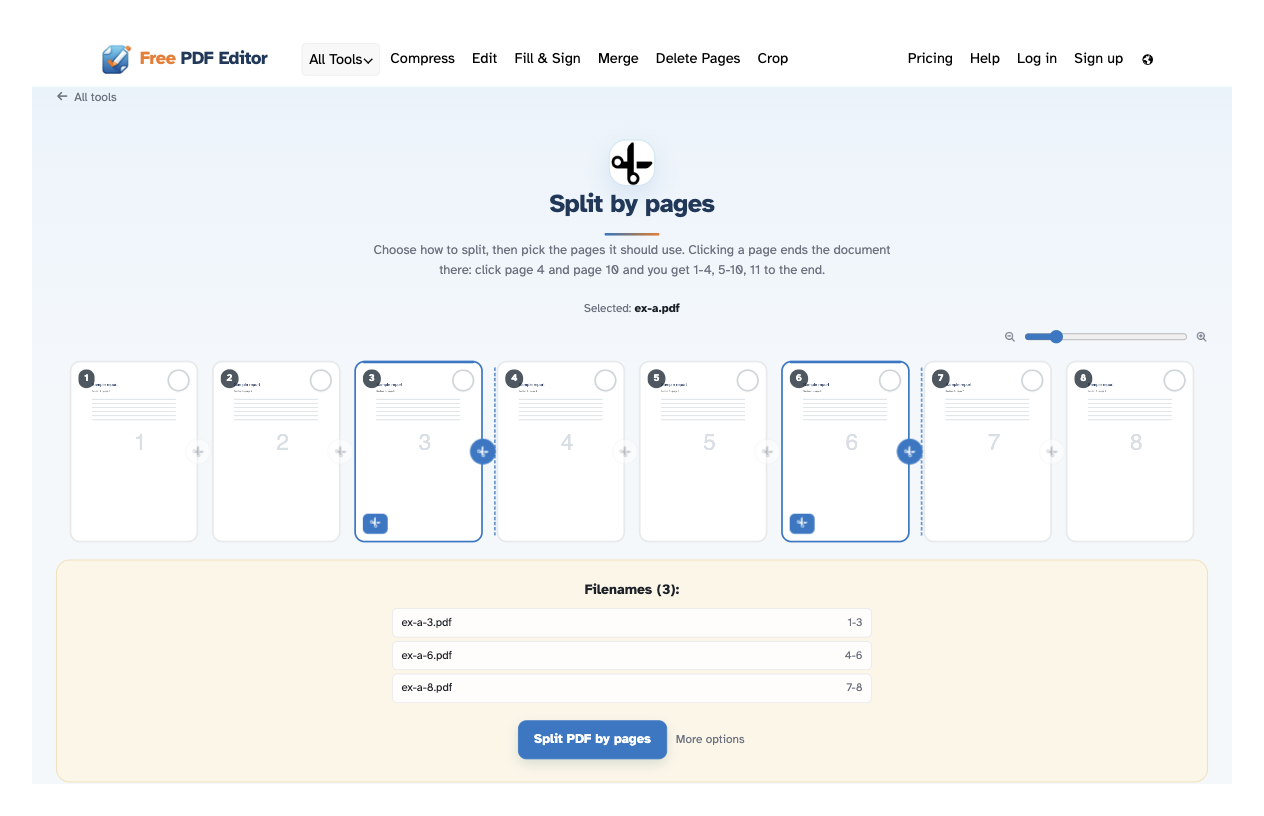
Mark where the parts end
In “Select pages to split” a clicked page ends the part it belongs to: click page 4 and page 10 and you get 1-4, 5-10, 11 to the end. Cuts can also be typed (“1-10,13,14,100-”). The Filenames panel under the pages lists every part exactly as it will download — live.
-
4
Split and download
Press Split PDF by pages and the ready page lists every file — download them one by one, or all together as a ZIP.
-
Four ways in
Every page into its own PDF, pick pages yourself, chunks of N, or every even page.
-
Click where a part ends
A clicked page closes its part: page 4 and page 10 give 1-4, 5-10 and 11 to the end.
-
Chunks of N pages
“Split every X pages” turns 8 pages into 4 documents of 2 — the chooser shows the count first.
-
Or type the cuts
“Split at these pages: 1-10,13,14,100-” marks every boundary for you.
-
Filenames panel
Every part is listed under the pages as it will download — names and ranges, updated live.
-
Private by default
No account, no watermark — and every file is automatically deleted after 2 hours.
Selected:
Choose an option
Filenames (0):