All tools

OCR

Convert PDF scans to searchable text and PDFs. Extract text from scans

Scanned pages get a searchable, copyable text layer.

or drop a PDF here

No file selected

Files stay private. Automatically deleted after 2 hours.

OfflineRather work offline? It already does — OCR runs in your browser

Step by step

How To OCR a PDF

Give a scan a text layer it can be searched, copied and selected from — right in the browser.

  1. 1

    Upload your scanned PDF

    Every page opens as a sheet — a scan is exactly what this tool is for: pictures of text that carry no text layer yet. Files are deleted after 2 hours.
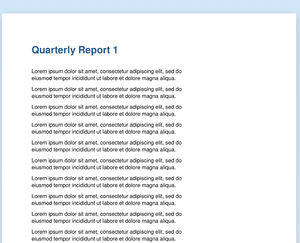
    A scanned page of the Quarterly Report on the OCR workspace
  2. 2

    Pick the language & run

    The language arrives auto-detected — English in our scan — with the picker holding Afrikaans to Bengali and beyond. Output formats: keep the searchable PDF, export plain Text, or tick both. The quick box handles a single page; Recognize text on all pages runs the lot.

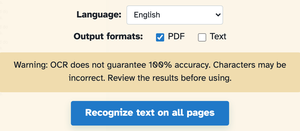
    The Quick single page mode box — English dropdown and Recognize text on this page button Language English, Output formats PDF ticked, the accuracy warning and the Recognize text on all pages button
  3. 3

    Download the searchable PDF

    In our run the scan came back with a real text layer — searching “Quarterly” finds it, the words can be copied and selected — and the file waits behind Download like any other result.
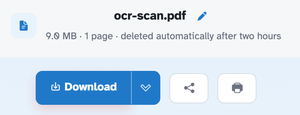
    The ready page showing ocr-scan.pdf — 9.0 MB · 1 page · deleted automatically after two hours — above the Download button
  • Searchable at last

    The scan keeps its looks and gains selectable, searchable text.

  • Language picker

    Auto-detected on upload, with a long list to choose from when it guesses wrong.

  • PDF or text out

    Keep the searchable PDF, export plain text, or both at once.

  • Per-page quick mode

    One page in a hurry? The quick box beside the sheets runs a single page.

  • Honest about accuracy

    The screen warns that OCR never guarantees 100% — review the text before using.

  • Private by default

    Runs right in your browser — and every file is automatically deleted after 2 hours.

OCR — frequently asked questions

Does OCR upload my scan?

No — recognition runs inside your browser (Tesseract), so the scanned content never leaves your device. The searchable PDF is built locally too.

Which languages can OCR read?

A long list — pick the language in the box before running. English is the default; other Tesseract language codes are accepted.

How accurate is the recognition?

Very good on clean, straight scans — it's the same Tesseract engine desktop tools use. Skewed or low-resolution pages do better after deskewing, and 300 dpi is the sweet spot for scanner settings.

Is OCR free?

Yes — OCR is free right here in your browser, with no watermark and no sign-up. Every tool on the site works the same way.

Do I need an account to use OCR?

No. Accounts are optional — they keep your credits, API keys and settings together. The tools work signed-out.

What happens to my file?

Every upload is stored under an unguessable id and deleted automatically after 2 hours. Nothing is listed, shared or emailed anywhere.

Can I run OCR from the API?

Yes — every tool has a REST endpoint. An API call for this tool costs 5 credits per page; browser use stays free. See the Plans & pricing page for plans and the API page for the endpoint list.

More answers on the Help page. Building with the API? Plans & pricing.