
Extract Pages
Get a new document containing only the desired pages.
or drop a PDF here
No file selected
Files stay private. Automatically deleted after 2 hours.
Step by step
How To Extract Pages From a PDF
Keep the pages you want and leave the rest behind — a new document holding only the pages you picked.
-
1
Upload your PDF
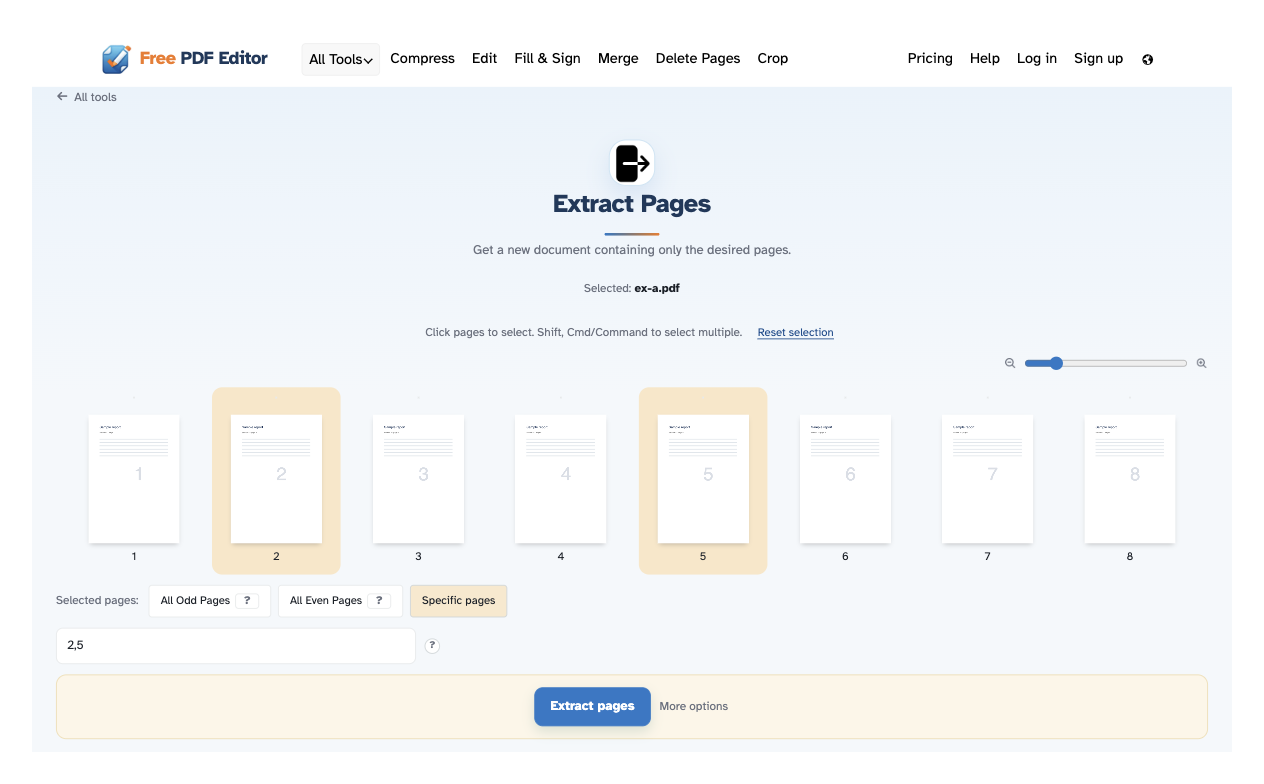
Drop in a document and every page appears as a thumbnail, with a zoom slider to size them. Files are deleted after 2 hours.
-
2
Pick the pages to keep
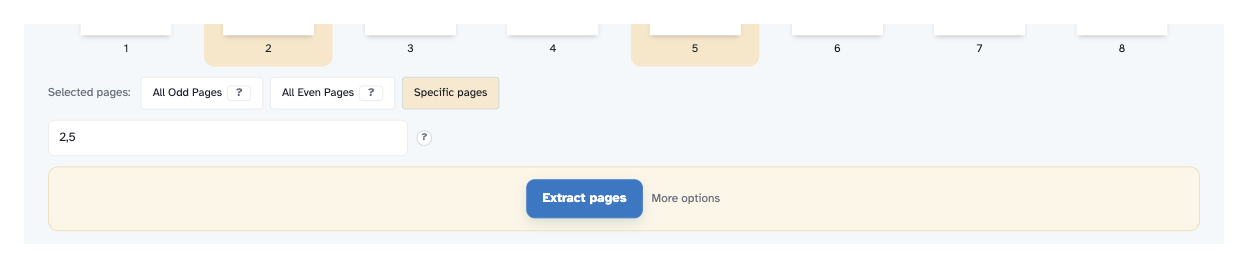
Click pages to select them — Shift or Cmd/Control adds more. Prefer typing? “1-10,13,14,100-” in the box does the same, and All Odd Pages / All Even Pages takes half the document in one tap. The box under “Selected pages” always mirrors what is picked.
-
3
Extract and download
Press Extract pages and the new document opens ready to download, share or print — everything else is left out.
-
Click pages to select
Click a page to pick it; Shift or Cmd/Control adds more, exactly as the hint above the pages says.
-
Or type the ranges
“1-10,13,14,100-” in the box picks exactly those pages — the box and your clicks always agree.
-
Odd or even in one tap
All Odd Pages and All Even Pages take half the document instantly; the ? tooltips explain each.
-
Zoom the thumbnails
The slider sizes every preview from 100% to 400%, so you can check a page before picking it.
-
Original quality kept
Pages are copied as they are — text, images and form fields stay untouched.
-
Private by default
No account, no watermark — and every file is automatically deleted after 2 hours.
Selected:
Choose an option
Filenames (0):