All tools

Word to PDF

Creates a PDF document from Microsoft Word .docx

Converts Word, Excel, PowerPoint or OpenDocument files into PDF.

or drop a Word file here

No file selected

Files stay private. Automatically deleted after 2 hours.

Step by step

How To Convert Word to PDF

Turn a Word document into a PDF anyone can open — the layout and the text arrive intact.

  1. 1

    Upload your Word file

    docx, doc, odt or rtf — from your computer, or from Dropbox, Google Drive and OneDrive through the caret beside the upload button. The free service takes up to 200 pages or 50 MB per document. Files are deleted after 2 hours.

  2. 2

    Convert to PDF

    One green action once the file is in — the screen shows which document is about to travel: Selected: wd-out.docx in our run.

    Selected: wd-out.docx above the blue Convert to PDF button
  3. 3

    Download the PDF

    In our test the six-page Word document came back as a 6-page PDF — the text fully selectable, “Quarterly Report” and all, Download right there.
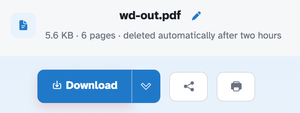
    The ready page showing wd-out.pdf — 5.6 KB · 6 pages · deleted automatically after two hours — above the Download button
  • Word in, PDF out

    docx, doc, odt or rtf — the result is a standard PDF anyone can open.

  • Text stays selectable

    The words remain real text, not pictures.

  • Page count kept

    Six pages in our test came back as a six-page PDF.

  • From anywhere

    Your computer, Dropbox, Google Drive or OneDrive.

  • Free up to 200 pages

    50 MB per document and three tasks per hour on the free service.

  • Private by default

    No account, no watermark — and every file is automatically deleted after 2 hours.

Word to PDF — frequently asked questions

Will the fonts and layout survive?

Layout, images and formatting carry into the PDF, rendered page by page so long documents stay consistent. The output keeps its selectable text.

Do hyperlinks and images survive?

Images, text and basic layout carry over page by page. Elaborate layouts — multi-column text boxes, exotic fonts — are approximated: give the result a quick read before sending it out.

Is Word to PDF free?

Yes — Word to PDF is free right here in your browser, with no watermark and no sign-up. Every tool on the site works the same way.

Do I need an account to use Word to PDF?

No. Accounts are optional — they keep your credits, API keys and settings together. The tools work signed-out.

What happens to my file?

Every upload is stored under an unguessable id and deleted automatically after 2 hours. Nothing is listed, shared or emailed anywhere.

Can I run Word to PDF from the API?

Yes — every tool has a REST endpoint. An API call for this tool costs 10 credits per file; browser use stays free. See the Plans & pricing page for plans and the API page for the endpoint list.

More answers on the Help page. Building with the API? Plans & pricing.